
How to Setup DSC for e-Tendering & GeM Portal Bidding
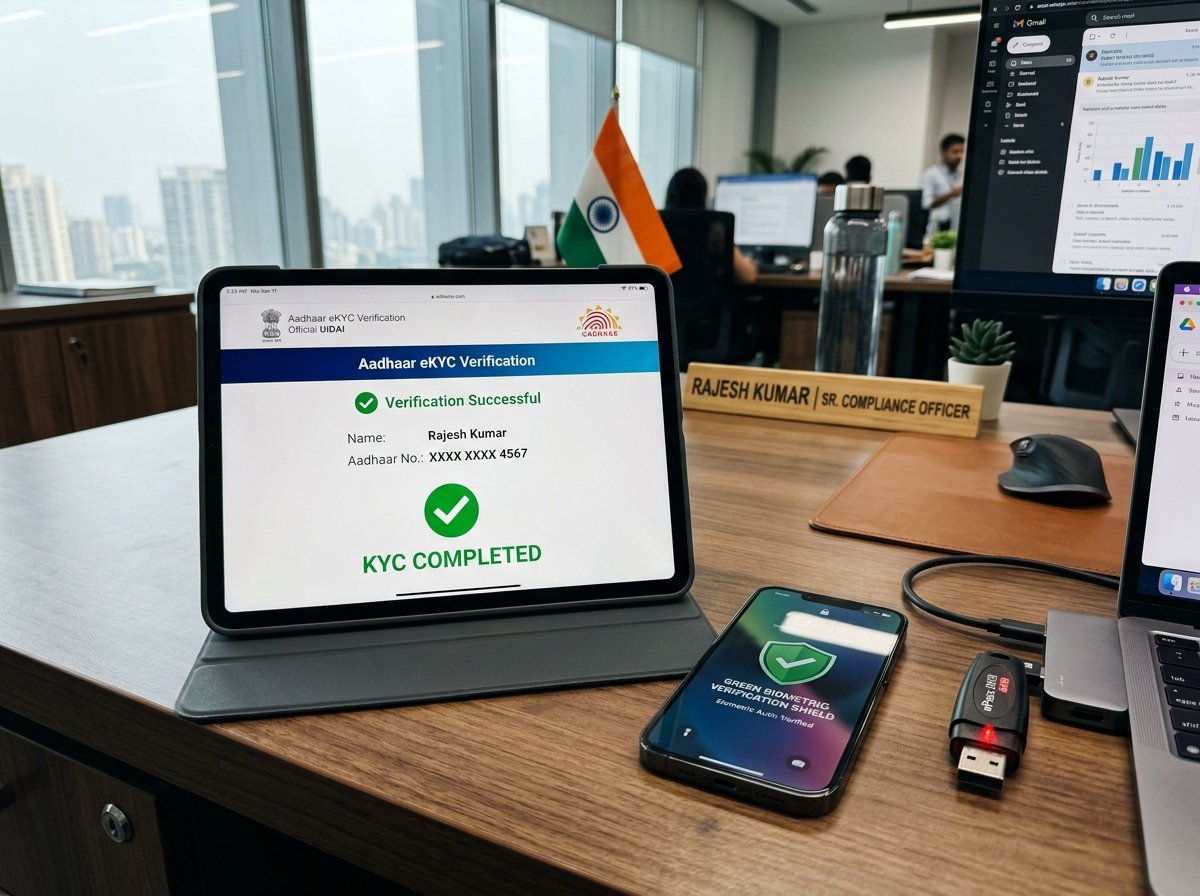
Preparing Your Computer for e-Tendering and GeM
Participating in government tenders (CPPP, Railways, Defence, State e-Procurement portals, and GeM) requires your Class 3 Signing and Encryption DSC to communicate seamlessly with your browser and the portal PKI service.
Step 1: Install Token Drivers
Insert your FIPS USB Token (such as ProxKey Watchdata or HYP2003). If auto-run does not launch, open your File Explorer and run the setup file from the virtual CD drive, or download the driver directly from our Downloads Manager page.
Step 2: Install 32-bit and 64-bit Java Runtime Environment
Most Indian e-Tendering portals still rely on Java 8 (JRE 1.8) for signing tender bids. Ensure you add the tender portal URL to the Java Control Panel Exception Site List.
Step 3: Test Browser DSC Detection
Open Google Chrome or Microsoft Edge. Always open the browser as Administrator when signing large bid packages. Ensure the USB token remains securely connected throughout the submission.